
• About Us
  • Contact Us
  • Cookies Policy
  • Terms of Use
  • Affiliate Disclosure
Sunday, November 1, 2026
  • Login
Imroze Pakistan
  • Home
  • National
  • International
  • Business
  • Sports
  • Entertainment
  • Blog
No Result
View All Result
  • Home
  • National
  • International
  • Business
  • Sports
  • Entertainment
  • Blog
No Result
View All Result
Imroze Pakistan
No Result
View All Result
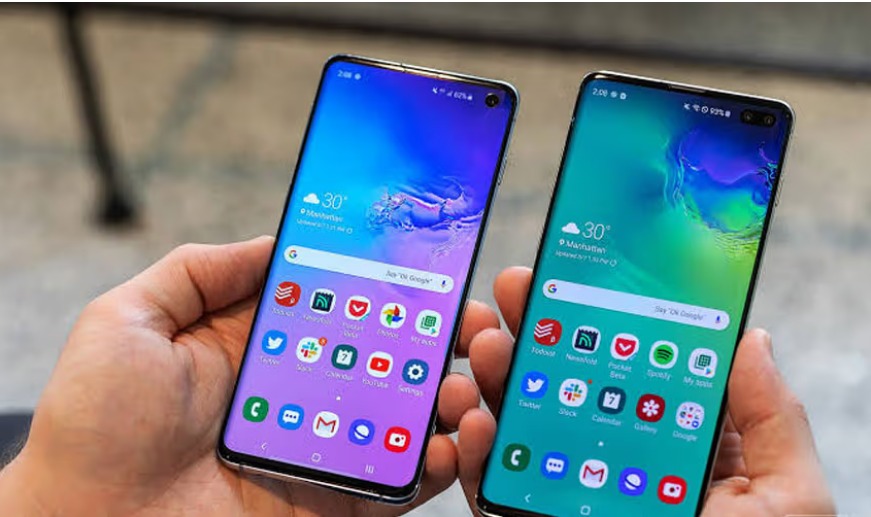
Samsung Galaxy smartphone display settings showing options for screen resolution, refresh rate, colour mode and Eye Comfort Shield.

Samsung Galaxy Display Settings: 5 Ways to Improve Your Screen Experience

November 1, 2026
0

Samsung Galaxy smartphones include several display features that allow users to customise screen sharpness, colour reproduction, brightness and motion smoothness. However, some options may not be enabled by default and require manual adjustments.

Whether you own a flagship Galaxy S-series phone or another compatible Samsung device, changing a few settings can improve everyday activities such as reading, watching videos, browsing and gaming.

Here are some useful ways to get more out of your Samsung Galaxy display.

1. Enable Higher Screen Resolution and Extra Brightness

If your Samsung phone supports Quad HD+ (QHD+) resolution, switching to it can make text, images and videos appear sharper.

The Galaxy S26 Ultra, Galaxy S26+ and Galaxy S25 Ultra are among the models offering QHD+ resolution. Devices with Full HD+ (FHD+) displays, including the standard Galaxy S26, do not provide this option.

To change your screen resolution:

  1. Open Settings.
  2. Tap Display.
  3. Select Screen resolution.
  4. Choose QHD+, if available.
  5. Tap Apply.

The higher resolution can make a noticeable difference when reading small text or viewing detailed images. However, it may consume more battery power, so FHD+ can remain a practical choice for users who prioritise battery life.

Pat Cummins Says Australia Must Improve After South Africa Series Defeat

Some Samsung models also include an Extra brightness feature that increases screen brightness in strong sunlight. Users can look for this option under Display or Brightness settings. On supported devices, Samsung requires Adaptive Brightness to be turned off before Extra brightness can be activated.

2. Adjust Refresh Rate for Smoother Motion

The refresh rate determines how frequently a display updates its image. A higher refresh rate can make scrolling, animations and supported games feel smoother.

To adjust this setting:

  1. Open Settings.
  2. Select Display.
  3. Tap Motion smoothness.
  4. Choose the available refresh-rate option.

Depending on the model, users may find two modes:

  • Standard: Generally uses a 60Hz refresh rate to help conserve battery power.
  • Adaptive: Dynamically adjusts the refresh rate and can reach up to 120Hz on supported devices.

Adaptive mode can improve the experience when scrolling through apps, navigating menus and playing compatible games. However, it may use more battery than Standard mode.

3. Choose the Right Screen Colour Mode

Samsung also allows users to adjust how colours appear through the Screen mode setting.

To access it, open Settings, select Display and tap Screen mode.

Most compatible devices offer two main profiles:

  • Natural: Displays more restrained and realistic colours.
  • Vivid: Produces richer, more saturated colours.

Some newer Galaxy models also provide additional controls under Advanced settings. These allow users to adjust colour balance and vividness according to their preferences.

Although Vivid mode can make images and videos look more striking, excessive adjustments may reduce colour accuracy. Users who prefer more natural-looking visuals may find Natural mode more suitable.

4. Activate Eye Comfort Shield

Samsung’s Eye Comfort Shield changes the display’s colour temperature to a warmer tone by reducing blue-light output.

The feature can be useful for people who find bright or cool-toned screens uncomfortable, particularly when using their phones in the evening.

To activate it:

  1. Open Settings.
  2. Go to Display.
  3. Select Eye Comfort Shield.
  4. Turn on the feature and choose your preferred settings.

Depending on the device, users can select:

  • Adaptive: Adjusts the screen’s colour temperature according to the time of day.
  • Custom: Allows users to schedule the feature and manually adjust the display’s warmth.

These controls make it easier to personalise the screen for different lighting conditions and viewing preferences.

5. Balance Display Quality With Battery Life

Higher resolution, Extra brightness and Adaptive refresh rates can improve the viewing experience, but some of these features may increase battery consumption.

Users who prioritise visual quality can enable the available high-resolution and smoother-motion options. Those who want longer battery life may prefer FHD+ resolution, Standard refresh rate and lower brightness when conditions allow.

It is also important to remember that display settings and their menu names can vary depending on the Samsung Galaxy model and software version.

Make Your Galaxy Display Work for You

Samsung’s display controls give users several ways to customise their phones. Higher resolution can improve sharpness, Adaptive mode can make movement smoother, colour profiles can change the appearance of images, and Eye Comfort Shield offers a warmer viewing experience.

Choosing the right combination depends on individual preferences, lighting conditions and battery-life requirements.


Previous Post

Pat Cummins Says Australia Must Improve After South Africa Series Defeat

Next Post

Spotify Plans AI-Powered Music Remix Service for 2027, Report Says

Related Posts

Spotify logo representing the company's reported plans for an AI-powered music remix service in 2027.
Technology

Spotify Plans AI-Powered Music Remix Service for 2027, Report Says

November 1, 2026
Nasdaq stock market logo displayed in New York amid concerns over Big Tech spending and artificial intelligence investment.
Technology

Nasdaq 100 Faces $2 Trillion Wipeout as AI Spending Fears Grow

October 31, 2026
Intel semiconductor processor displayed against a technology-themed background amid a sharp decline in the company's stock price.
Technology

Intel Shares Plunge 30% as AI Spending and Weak PC Demand Rattle Tech Stocks

October 31, 2026
Alphabet and Google logos representing the company's nearly 13% stock decline following its third-quarter financial results.
Technology

Alphabet Shares Plunge 13%, Wiping Out $482 Billion in Market Value

October 30, 2026
TikTok logo representing the platform's removal of over 23.2 million videos in Pakistan during Q2 2026.
Technology

TikTok Removes Over 23.2 Million Videos in Pakistan During Q2 2026

October 30, 2026
Pakistan Telecommunication Authority report on cyber threats, Dark Web monitoring, data leaks and website defacement
Technology

PTA Identifies 326 Cyber Threat Indicators Through Dark Web Monitoring

October 29, 2026
Next Post
Spotify logo representing the company's reported plans for an AI-powered music remix service in 2027.

Spotify Plans AI-Powered Music Remix Service for 2027, Report Says

Leave a Reply Cancel reply

Your email address will not be published. Required fields are marked *

Recent News

Spotify logo representing the company's reported plans for an AI-powered music remix service in 2027.

Spotify Plans AI-Powered Music Remix Service for 2027, Report Says

November 1, 2026
Samsung Galaxy smartphone display settings showing options for screen resolution, refresh rate, colour mode and Eye Comfort Shield.

Samsung Galaxy Display Settings: 5 Ways to Improve Your Screen Experience

November 1, 2026
Australia captain Pat Cummins speaking after his team's 2-1 Test series defeat against South Africa at Newlands.

Pat Cummins Says Australia Must Improve After South Africa Series Defeat

November 1, 2026
South African spinner Simon Harmer celebrates his six-wicket haul during the third Test against Australia at Newlands in Cape Town.

South Africa Crush Australia by 176 Runs to Seal Test Series 2-1

November 1, 2026
Federal Board of Revenue considers fines and shop closures following a weak response to its retailers tax registration scheme.

FBR Considers Penalties and Shop Closures as Retailers Shun Tax Scheme

November 1, 2026

Imroze Pakistan is your trusted digital news platform, delivering timely and credible updates from across Pakistan and around the globe. From breaking headlines to insightful features on politics, economy, society, and international affairs — we aim to inform, engage, and empower our readers with facts that matter.

Gallery

British-Pakistani Shatters A-Level Records with 6 World Titles
inDrive Wins Gold at Dragons of Pakistan Awards, Secures Spot in Dragons of Asia Competition
Sindh CM Marks Independence Day at KCCI, Announces Major Water Projects

Popular Post

PM Shehbaz Sharif Unite for a Powerful Partnership: Pakistan and Turkey’s Future Plans Revealed!

PM Shehbaz Sharif Unite for a Powerful Partnership: Pakistan and Turkey’s Future Plans Revealed!

August 3, 2023
“Strategic Synergy: Faraz-ur-Rehman Advocates Industry-Education Collaboration for National Growth”

“Strategic Synergy: Faraz-ur-Rehman Advocates Industry-Education Collaboration for National Growth”

October 27, 2023
UN chief calls for ‘immediate’ ceasefire in Gaza

UN chief calls for ‘immediate’ ceasefire in Gaza

January 16, 2024
  • About Us
  • Contact Us
  • Cookies Policy
  • Terms of Use
  • Affiliate Disclosure

© 2026 Imroze Pakistan - All Rights Reserved

Welcome Back!

Login to your account below

Forgotten Password?

Retrieve your password

Please enter your username or email address to reset your password.

Log In
No Result
View All Result
  • Home
  • National
  • International
  • Business
  • Sports
  • Entertainment
  • Blog

© 2026 Imroze Pakistan - All Rights Reserved